How to Configure TP-Link Router: A Step-by-Step Guide
Are you looking to configure your TP-Link router for optimal performance and security? With the increasing demand for internet connectivity, setting up a reliable and efficient network is crucial for both personal and professional use. In this article, we will provide a comprehensive guide on how to configure your TP-Link router, covering the essential steps and settings to get you started.
Accessing the Router's Web Interface
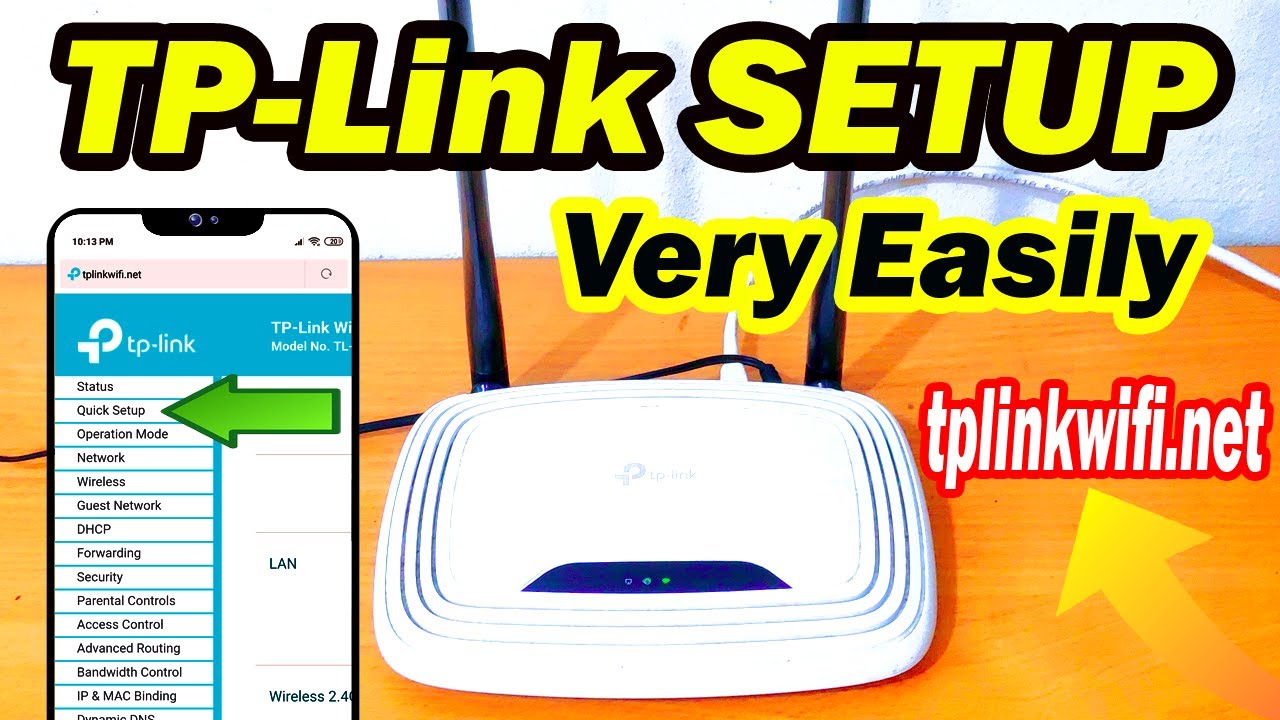
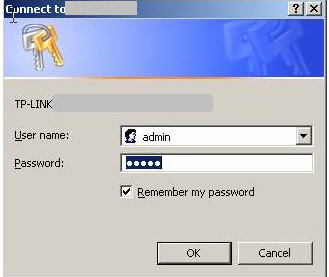
To configure your TP-Link router, you need to access its web interface using a web browser. The default IP address for TP-Link routers is tplinkwifi.net. Simply open a web browser and type in the IP address, followed by pressing Enter. This will redirect you to the login page, where you will be asked to enter your username and password.

Logging In and Basic Configuration
Once you have logged in, you will be presented with the basic configuration page. From here, you can configure the following settings:
- Change the router's password: This is the first step in securing your router and network.
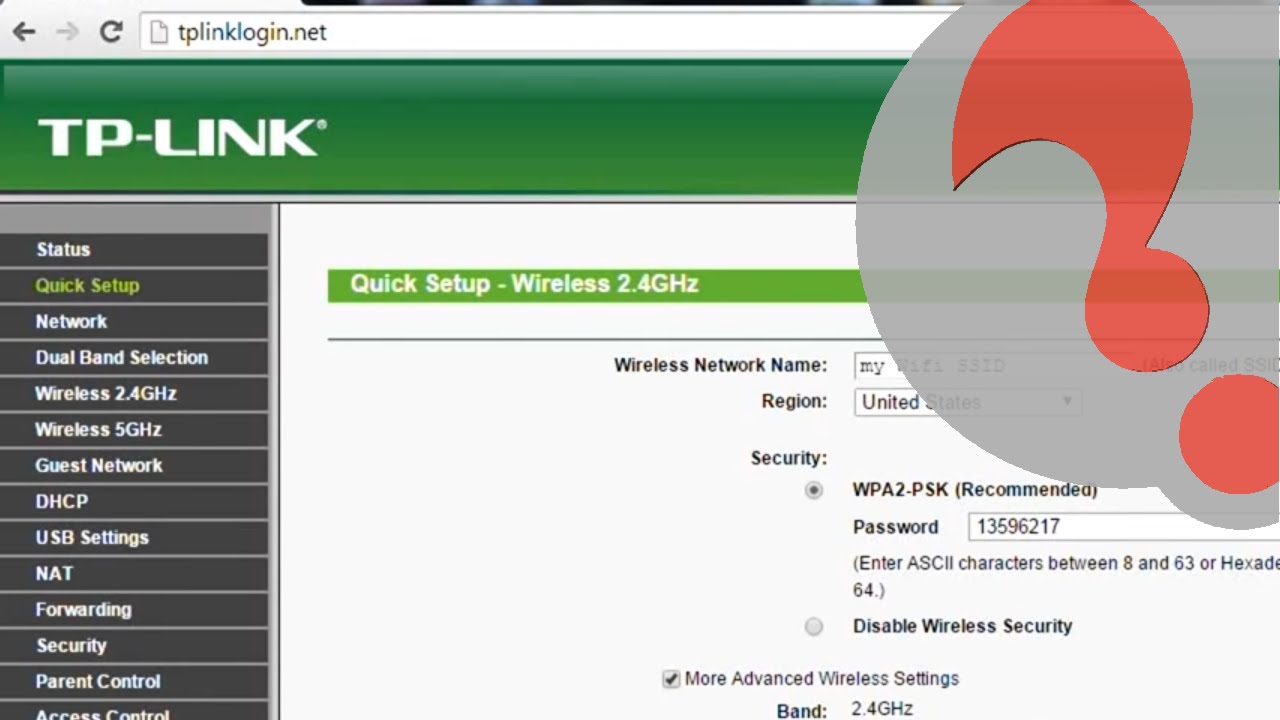
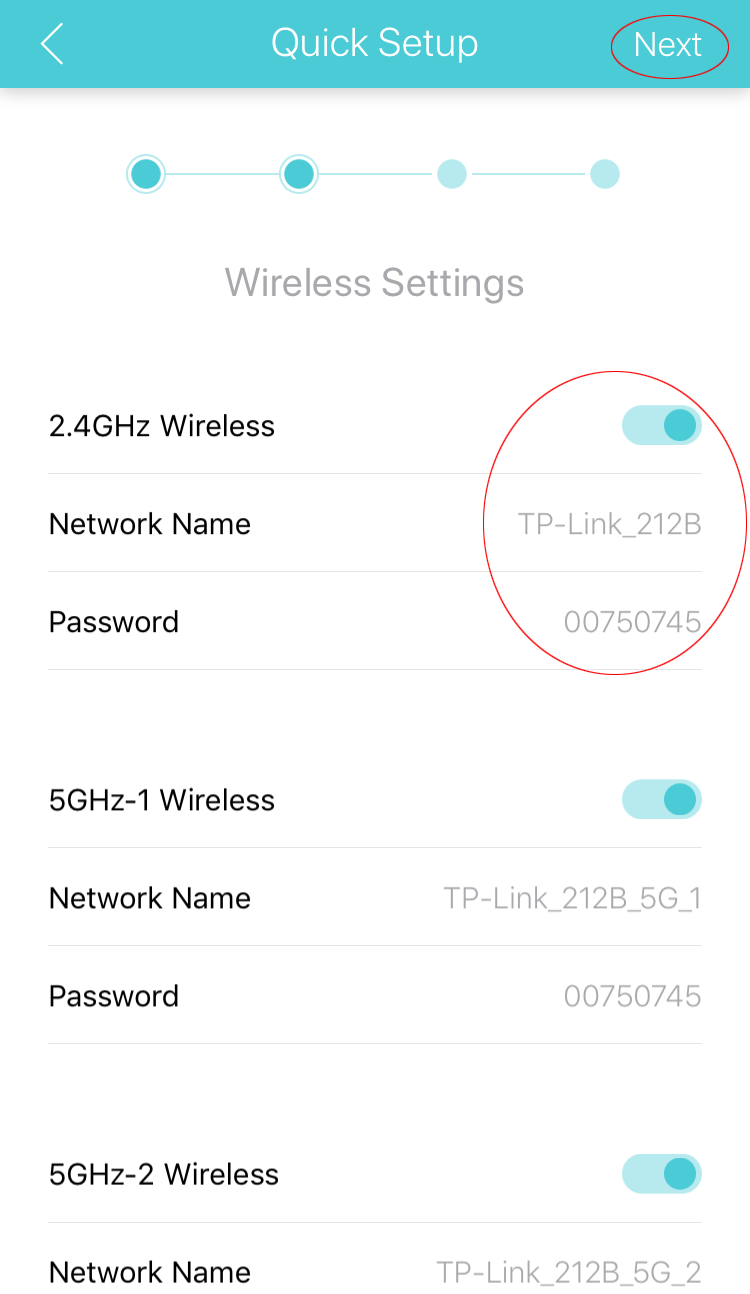
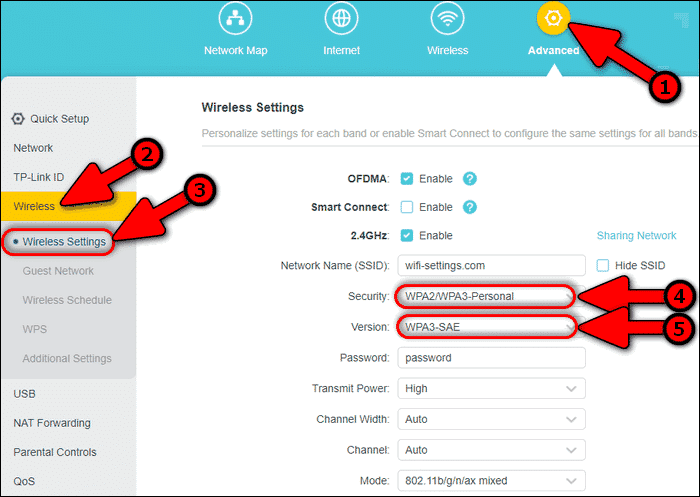
- Set up WiFi settings: Configure the WiFi network name (SSID), channel, and security settings (WPA/WPA2/ WPA3)
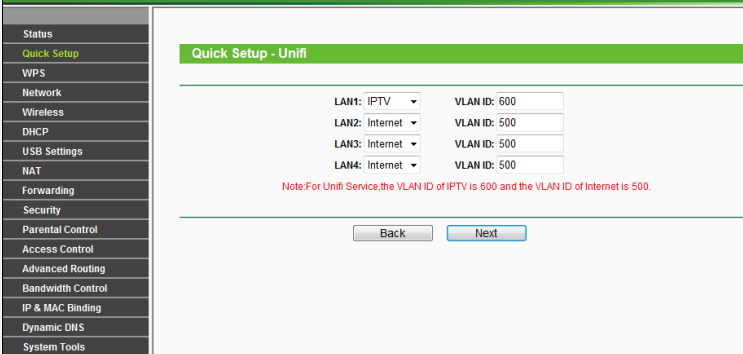
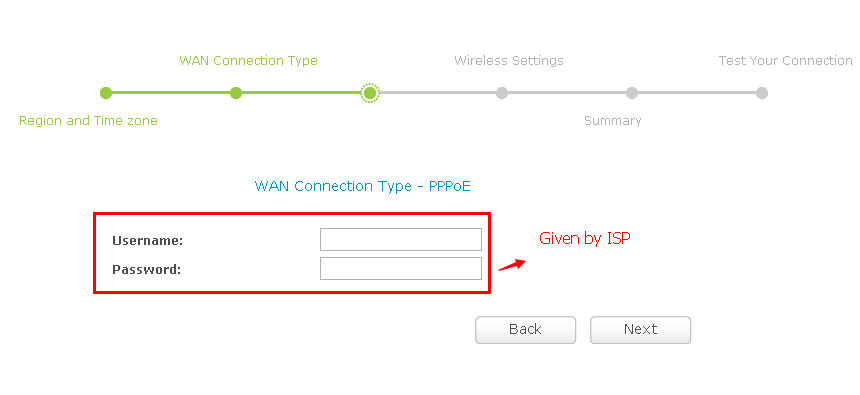
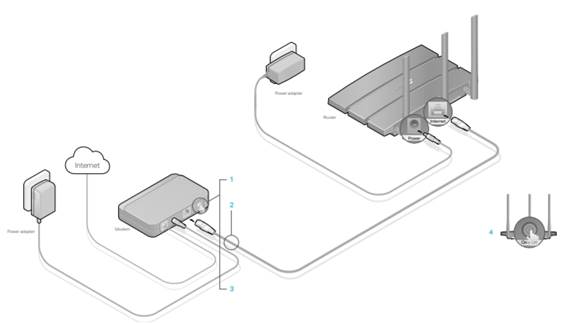
- Set up internet settings: Configure the internet connection type, DNS settings, and IP address assignment (DHCP)