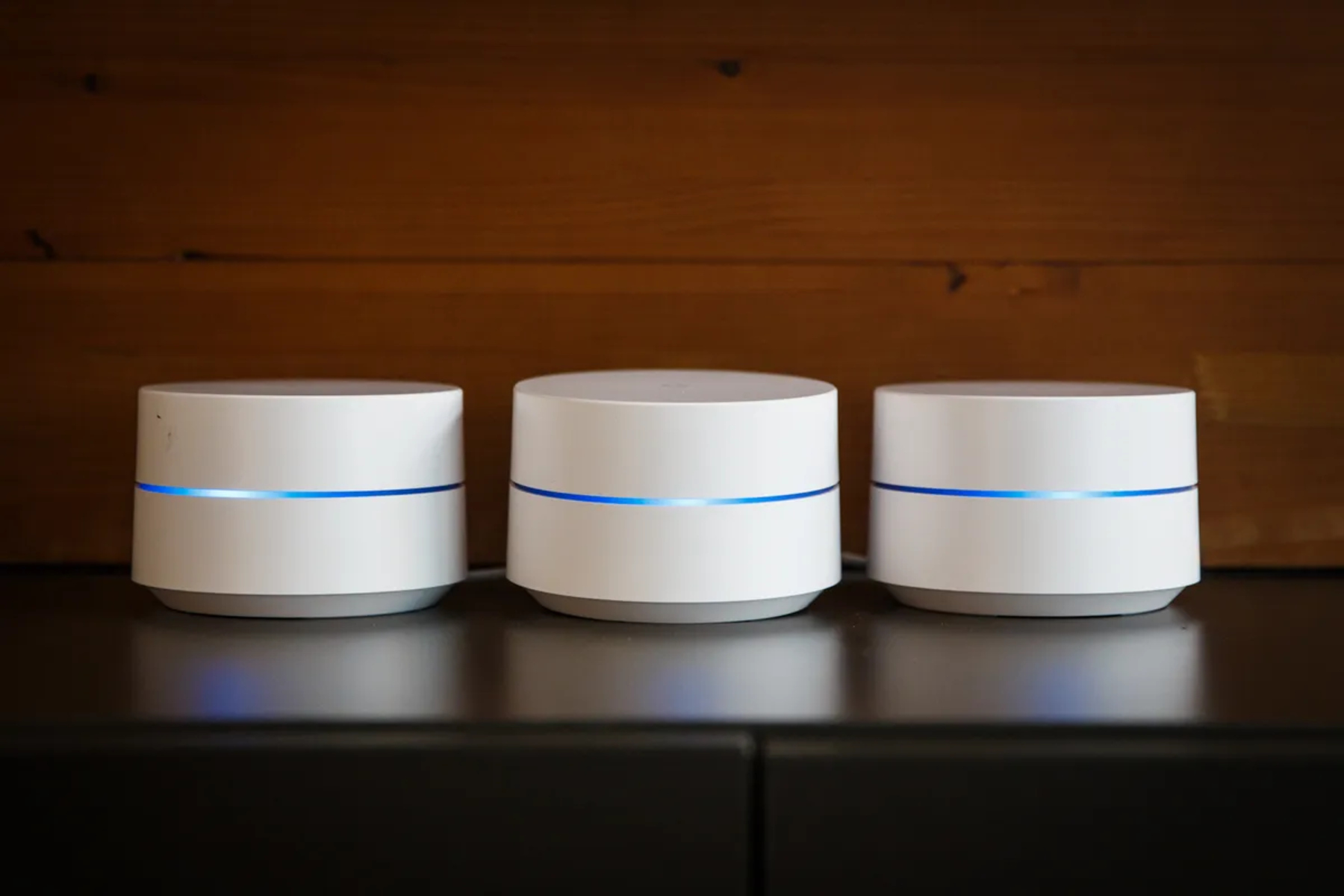
Google Wi-Fi Setup Sequence: A Step-by-Step Guide
Introduction to Google Wi-Fi Setup
Are you looking to expand your Wi-Fi coverage throughout your home with a reliable and fast internet connection? Look no further than Google Wi-Fi. This popular mesh network system provides a seamless and connected experience across all your devices. In this guide, we will walk you through the Google Wi-Fi setup sequence, including how to setup your mesh Wi-Fi system and add devices to your existing network.
Components Needed for Setup
Before you begin, you will need the following components to setup your Google Wi-Fi mesh system:
- A Nest Wi-Fi router or a Nest Wi-Fi Pro router
- Any additional Wi-Fi devices such as Nest Wi-Fi point, Google Wi-Fi points, or Nest Wi-Fi routers (optional)

Step 1: Access the Google Wi-Fi App
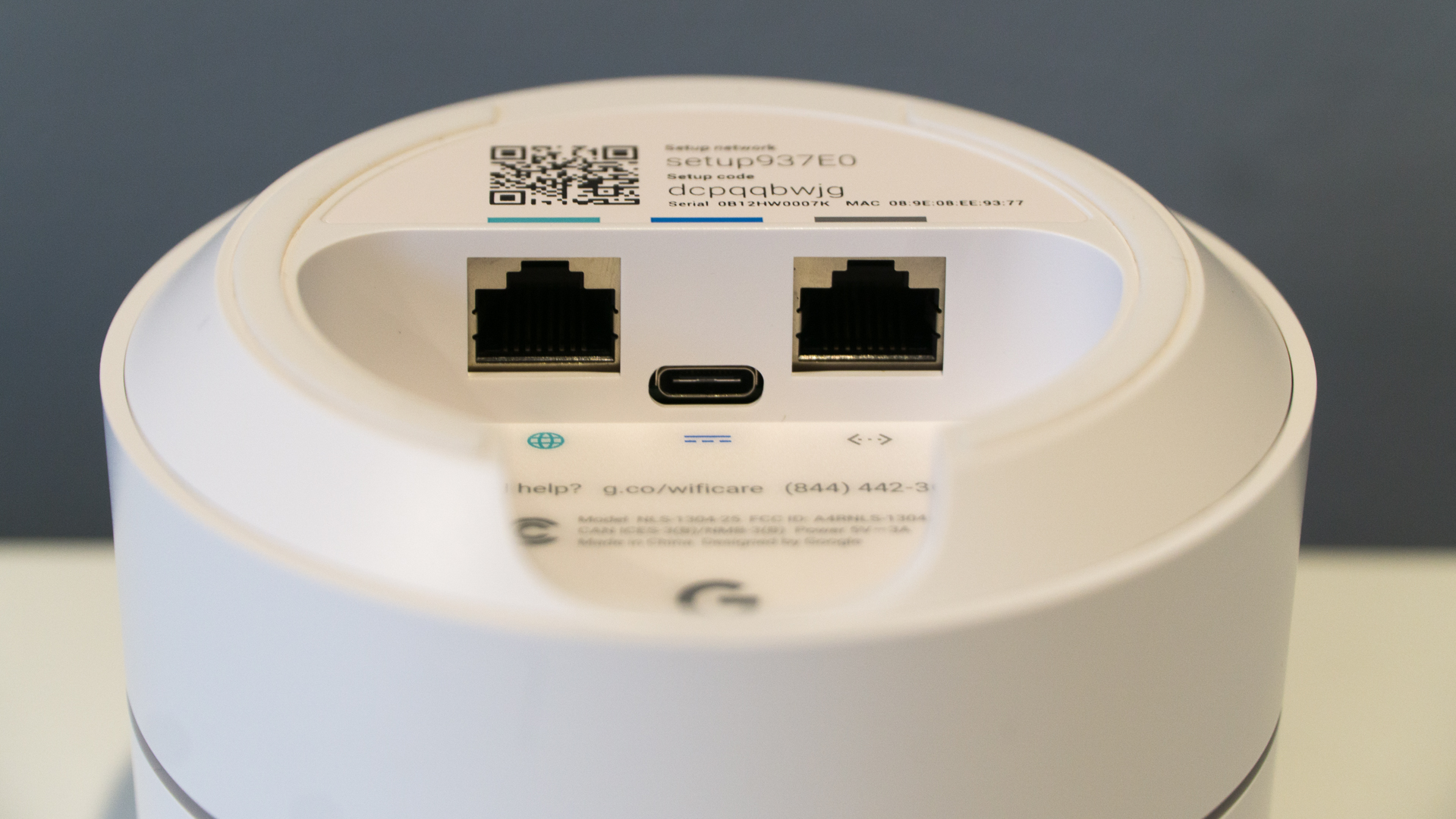
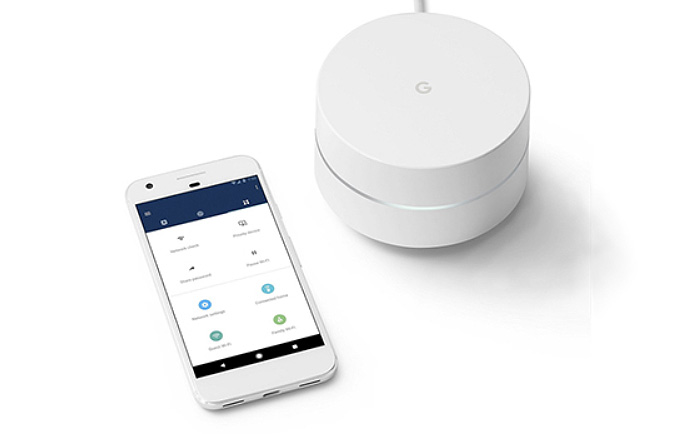
Once you have all the necessary components, open the Google Wi-Fi app on your phone or tablet and begin the setup process. Your device will scan for nearby Wi-Fi points and prompt you to scan the QR code on the bottom of the point.
Step 2: Scan the QR Code
Scan the QR code on the bottom of the Wi-Fi point using your device's camera. This will establish a connection between your device and the Wi-Fi point.