Configuring Range Extender with Router: A Step-by-Step Guide
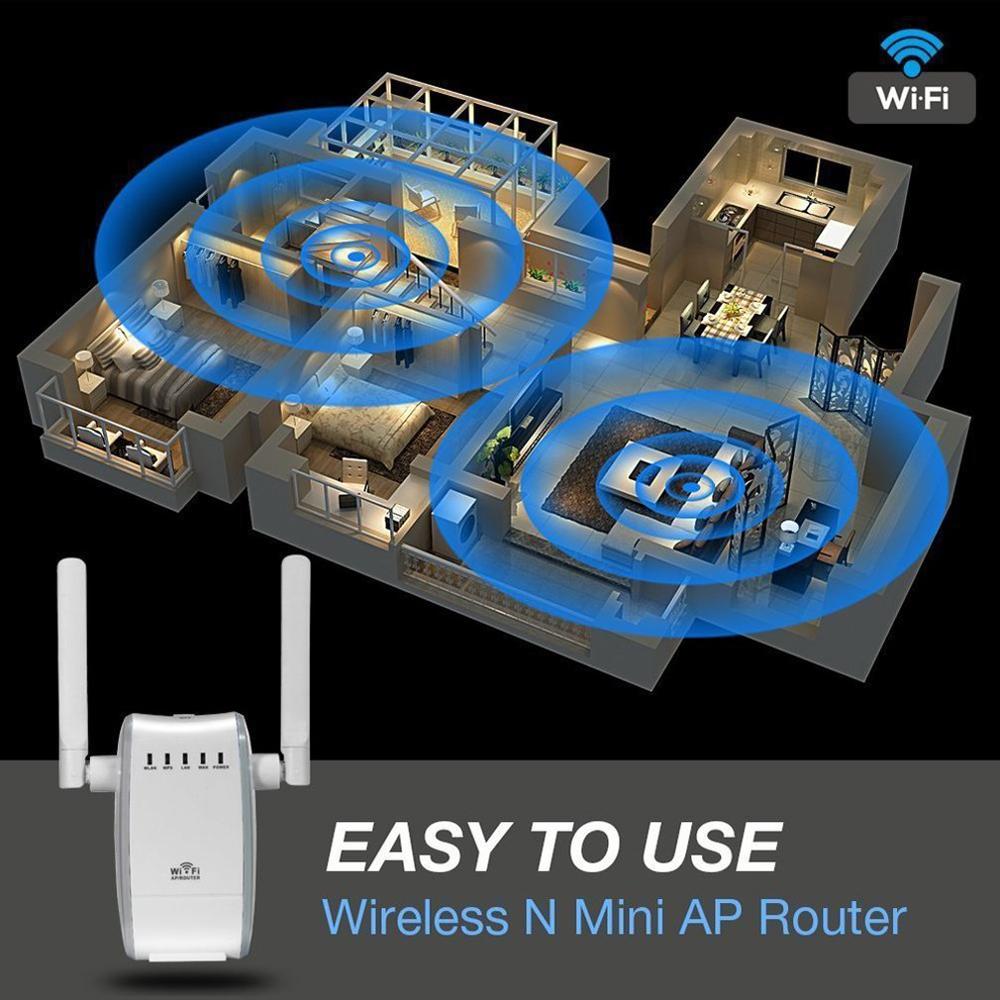
Are you tired of a weak Wi-Fi signal in certain areas of your home or office? A Wi-Fi range extender can help you boost your internet coverage by repeating the signal from your router. In this article, we'll show you how to configure a range extender with your router for optimal performance.
Understanding Range Extenders
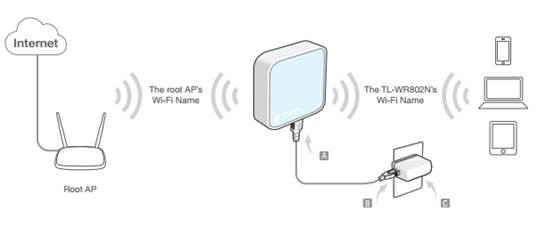
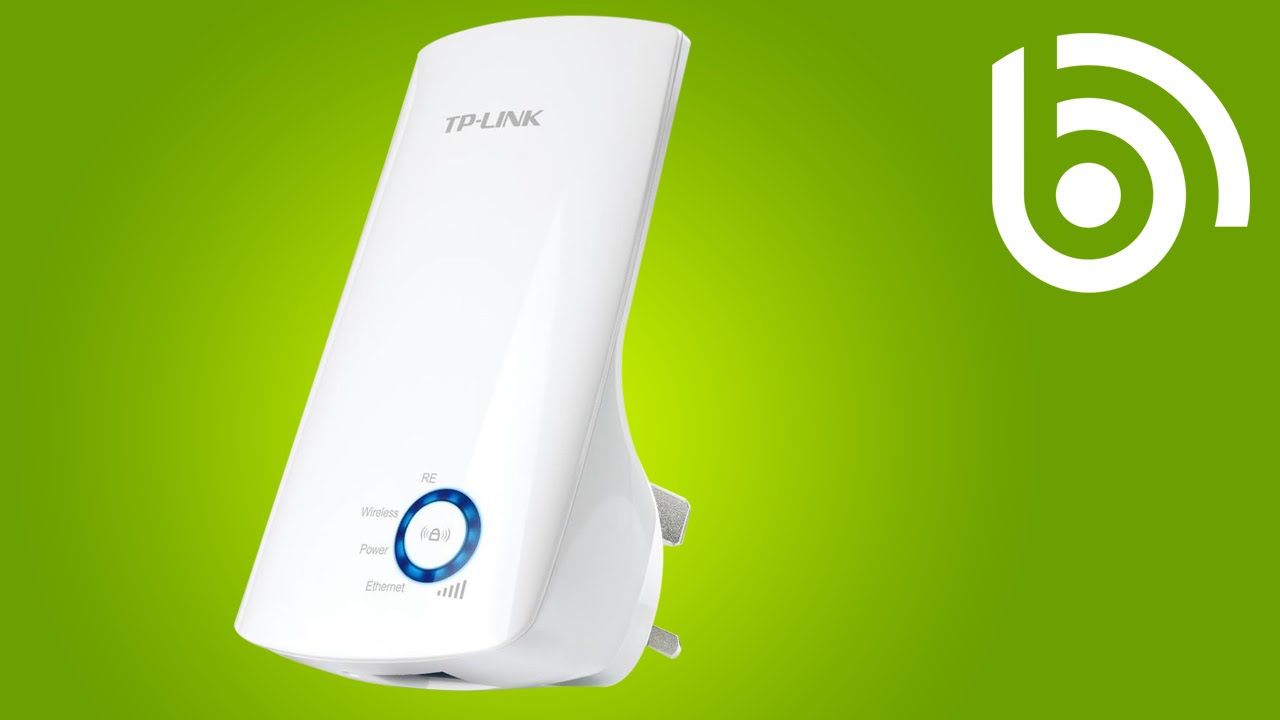
- A range extender creates a new Wi-Fi network that repeats the signal from your router.
- Range extenders can be configured to work in Access Point (AP) mode or Repeater mode.
- AP mode lets your range extender expand your Wi-Fi by connecting to your router or switch through a cable.
- Repeater mode relies on the existing Wi-Fi signal to rebroadcast it to expand the coverage area.
Configuring Range Extender with Router

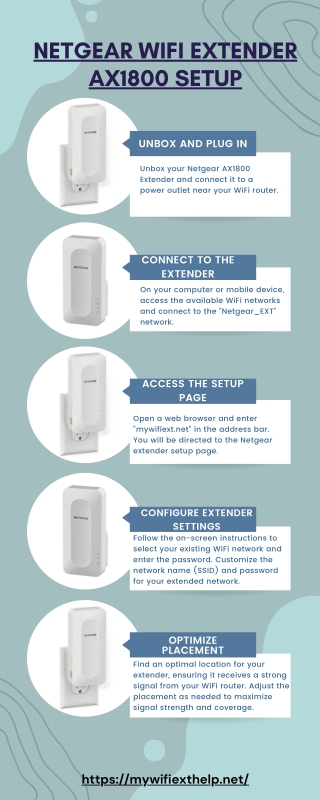
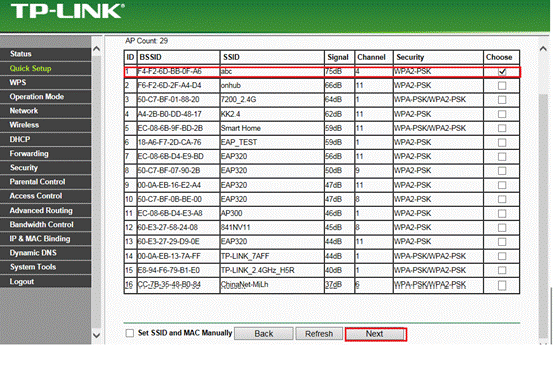
Configuring a range extender with your router is a straightforward process that requires a few steps. Here's a step-by-step guide:
Method 1: Using WPS (Wi-Fi Protected Setup)
- Make sure your router and range extender are in the same network.
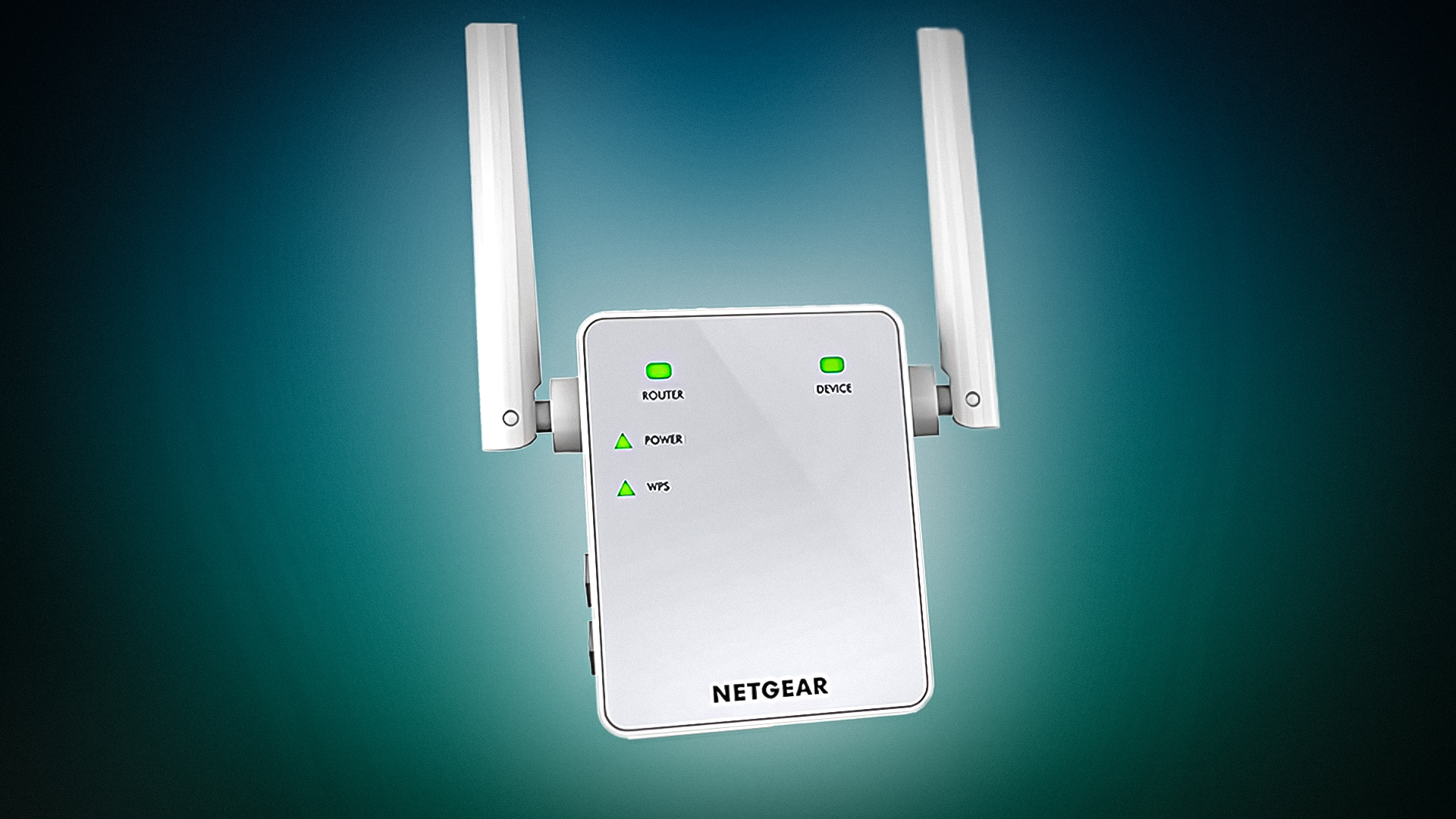
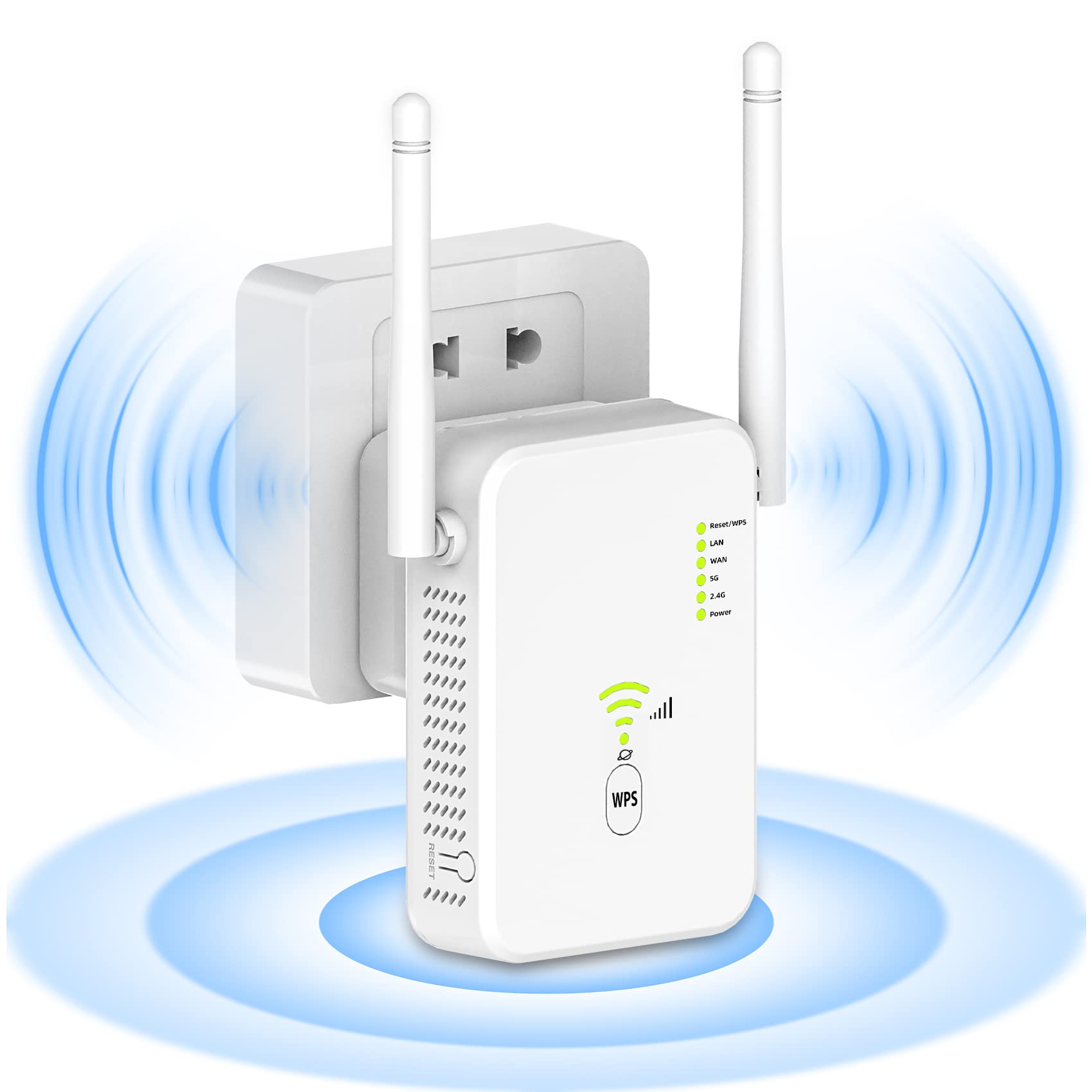
- Press the WPS button on your router, and within two minutes, press the WPS button on your range extender.
- Wait for the range extender to connect to your router automatically. Once connected, the range extender's lights will indicate a successful setup.