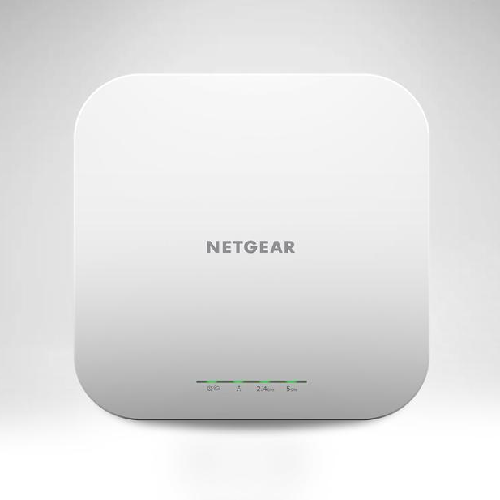
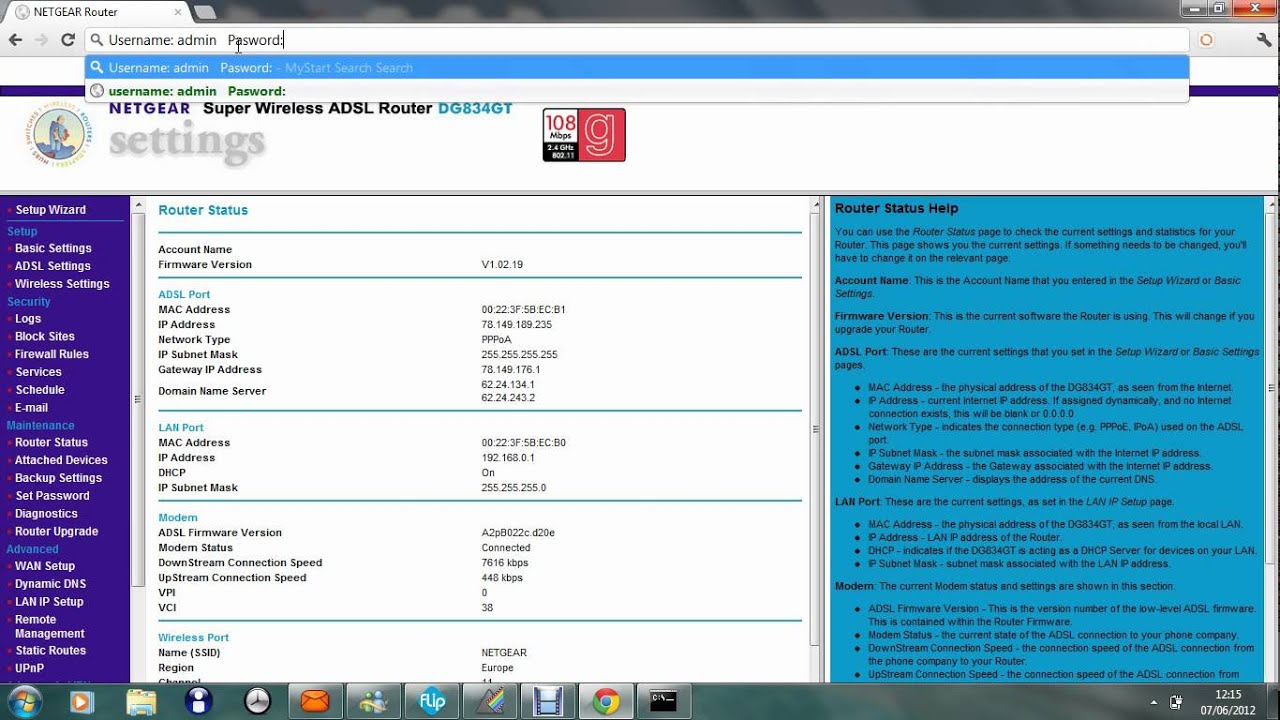
Netgear Router Access Point Setup: Extend Your Network Coverage
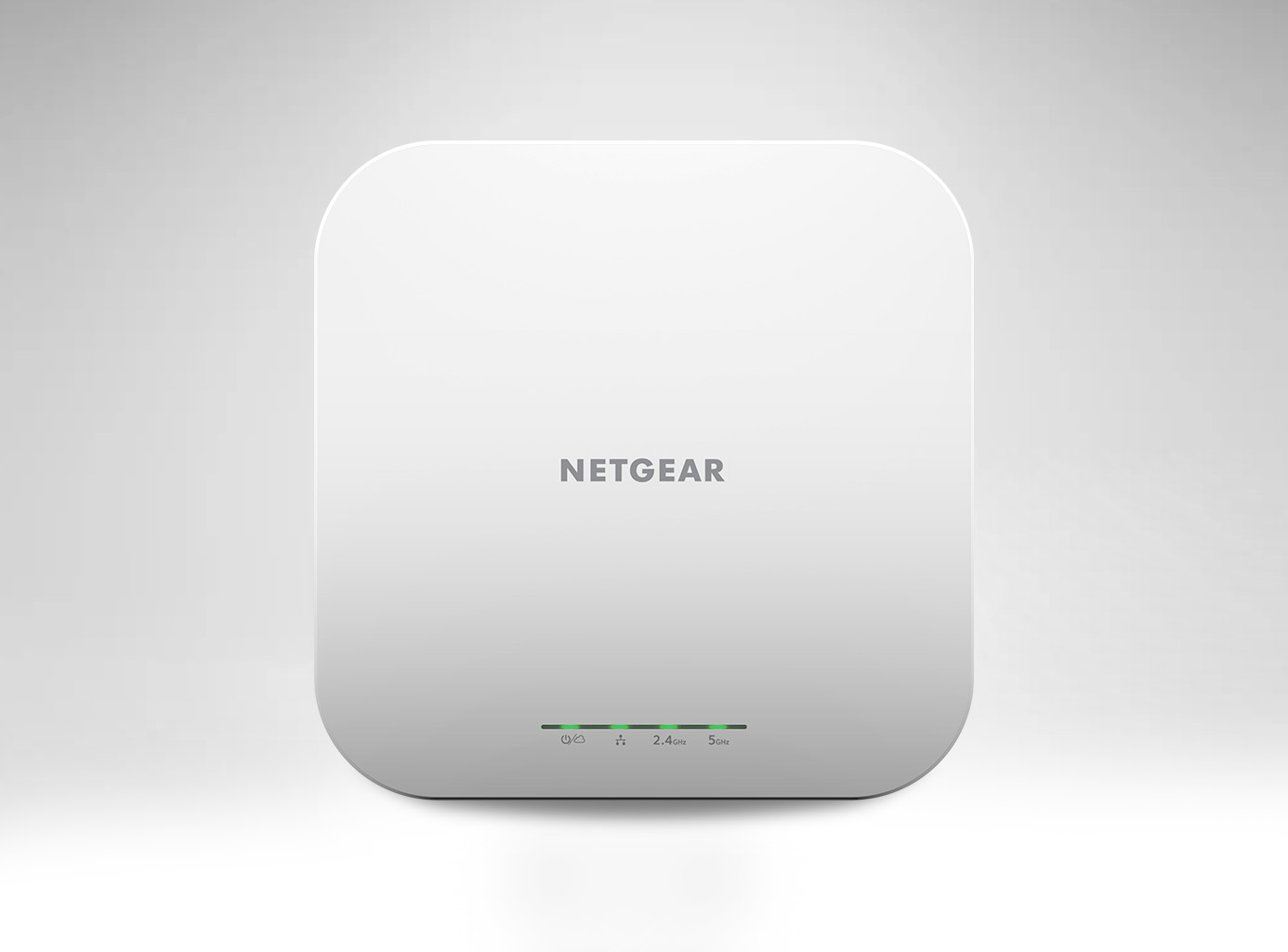
The process of setting up a Netgear router as an access point involves configuring the device to extend the wireless coverage of your existing network. In this article, we will provide a comprehensive guide on how to set up a Netgear router in access point mode, covering all the necessary steps and tips to ensure a successful setup.
Understanding Netgear Router Access Point Setup
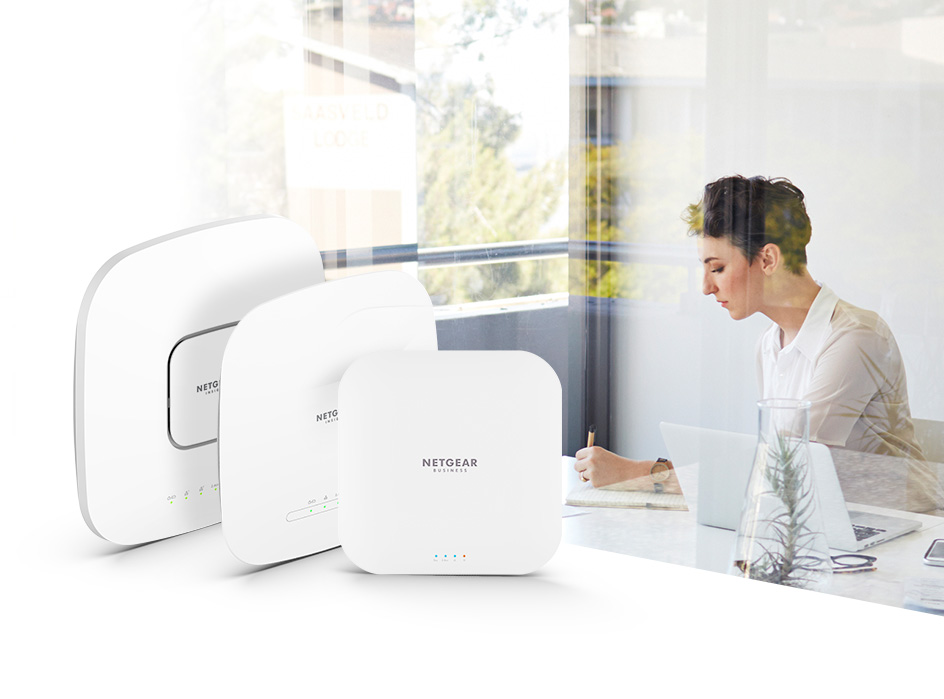
The Netgear router access point setup process is designed to allow you to extend the wireless coverage of your existing network by connecting a second router to the main network. This setup is particularly useful for larger homes or offices where a single router may not provide sufficient coverage. By setting up a Netgear router as an access point, you can create a seamless network experience, ensuring that all devices can connect to the network with ease.
Equipment Needed
- Netgear router (one with access point capability)
- Existing router or gateway
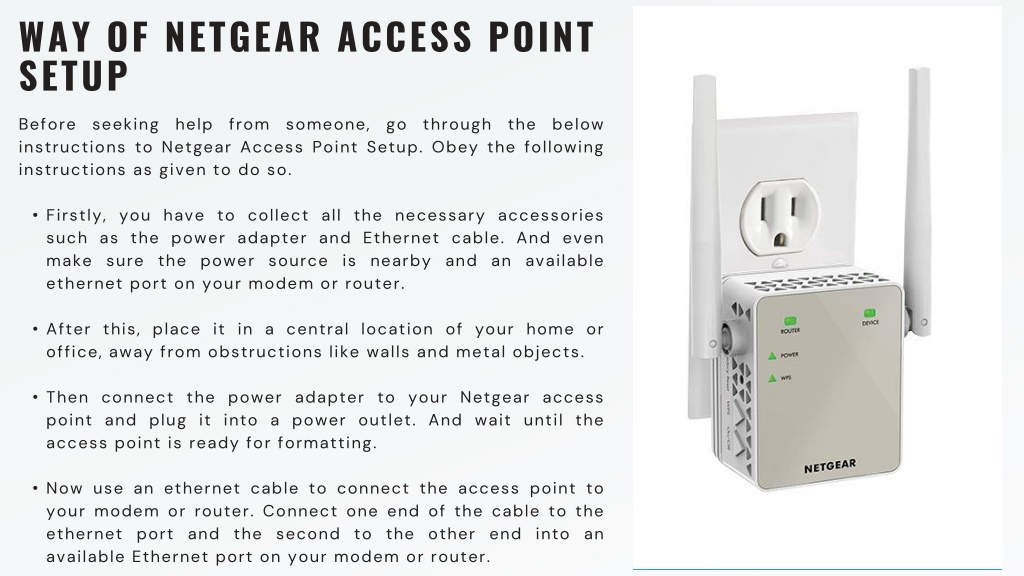
- Ethernet cable
- Power source
- Computer or device for configuration
Step 1: Connect the Netgear Router to the Existing Network
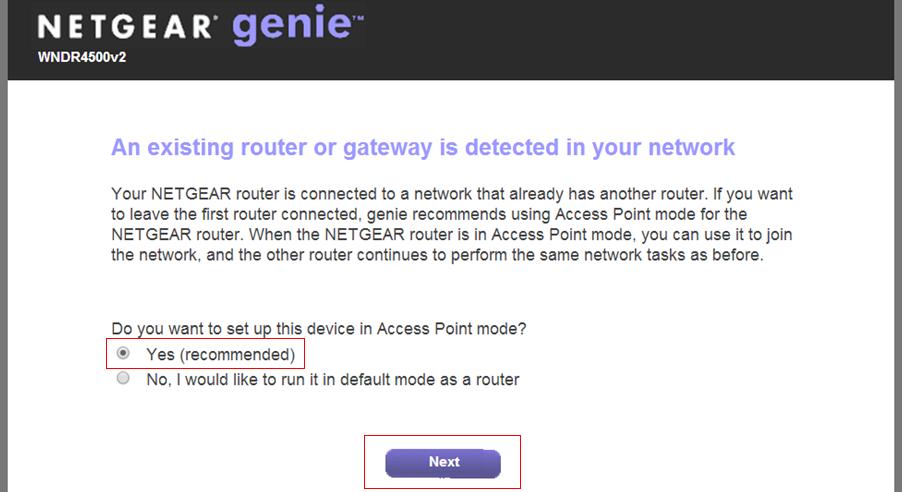
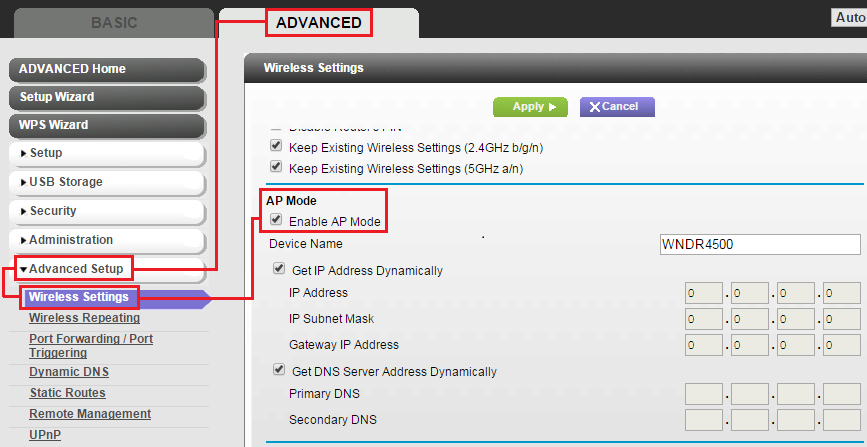
To set up a Netgear router as an access point, you will need to connect the device to the existing network using an Ethernet cable. This cable should be connected to one of the LAN ports on the main router. Ensure that the Netgear router is powered on and configured to operate in access point mode.